Products/MHS PhoneDesk
New · Windows + Android + iPhone

MHS PhoneDesk

Call and text from your PC, using the phone and SIM you already have.

Dial from the keyboard, see who's calling in a popup, answer with one click, and read and reply to SMS on the big screen. Click a number in your CRM and your phone makes the call. Phone and PC talk directly over your office Wi-Fi or Bluetooth; nothing passes through our servers.

Education & visa consultanciesSales & telecalling teamsCustomer support desksClinics & front desksSmall offices

iPhone needs no app: it connects to the Windows app over Bluetooth. Microsoft Store and Google Play versions are on the way.

At a glance
Version0.9.1 (beta)
Released13 October 2026
PCWindows 10 & 11, 64-bit
Android8.0 or newer, over Wi-Fi
iPhoneBluetooth, no app needed
UpdatesAutomatic, PC and phone
Your dataStays on your phone & PC
See it on your desk

Your phone's calls and messages, in one calm window.

These are real screens from the Windows app, shown with sample contacts.
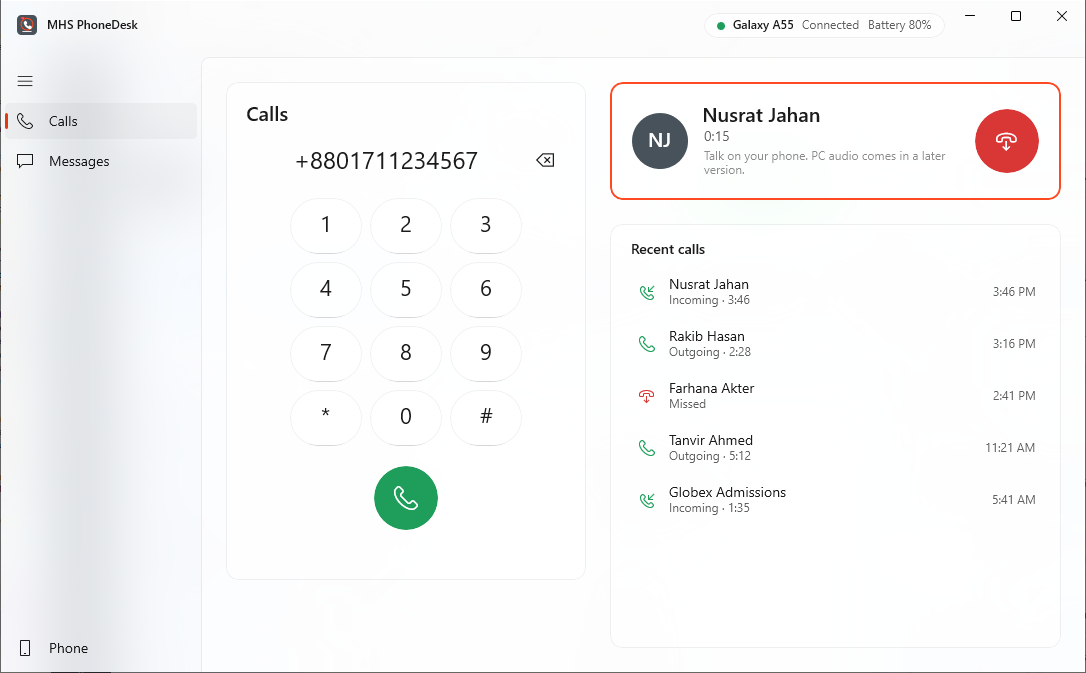
PhoneDesk Calls screen during a call with Nusrat Jahan, with the keypad and recent calls
Calls. Type a number or pick a recent call. The call runs on your phone; the PC shows who and how long.
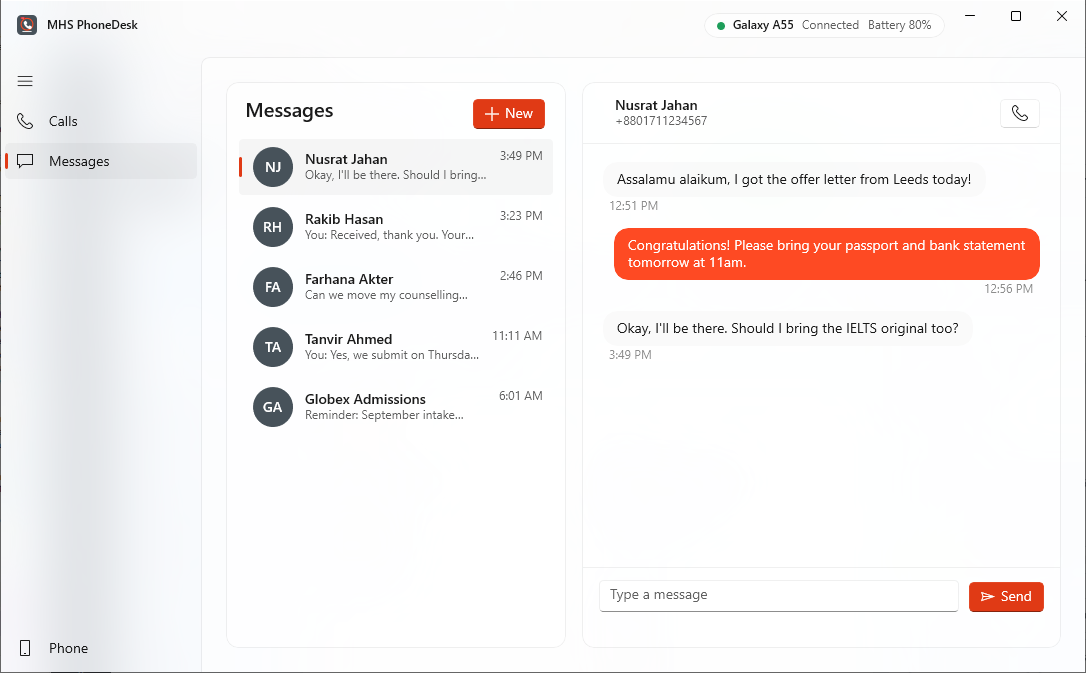
PhoneDesk Messages screen with a conversation and a reply box
Messages. Full SMS history from Android, contact names, and replies typed on a real keyboard.
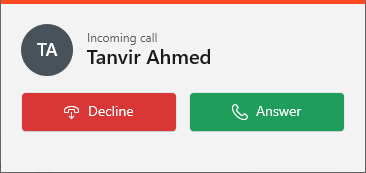
Incoming call popup from Tanvir Ahmed with Decline and Answer buttons
Incoming calls. A popup at the bottom right shows the caller's name, with Answer and Decline. Missed calls become a Windows notification.
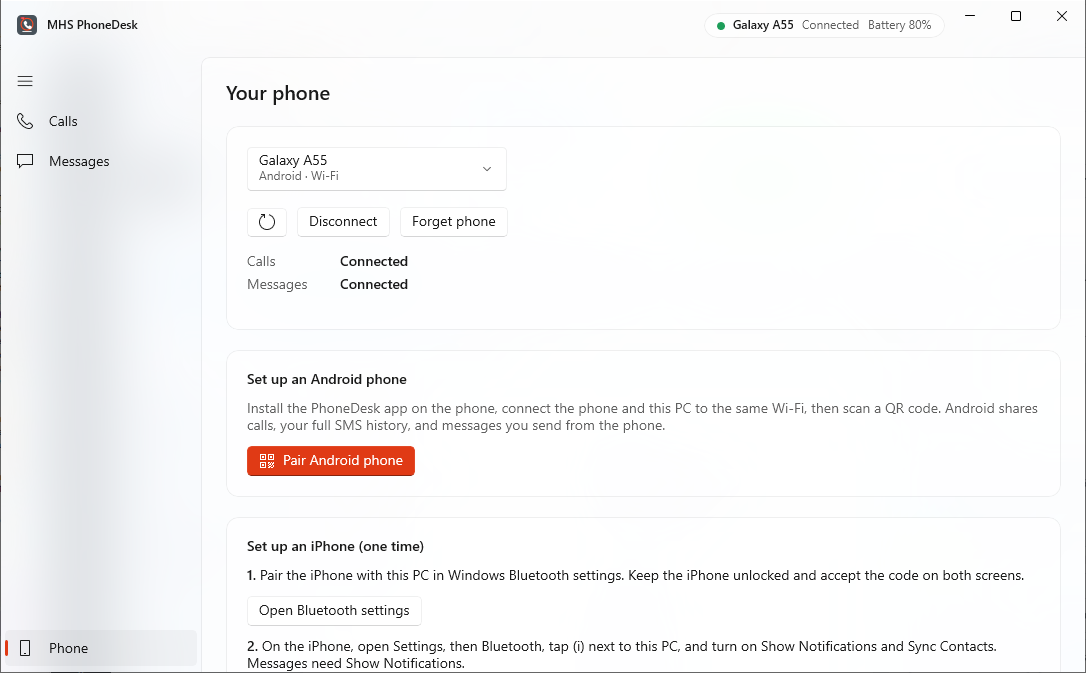
PhoneDesk Phone page showing a connected Android phone and setup options
Your phone. Connection status, pairing a new Android phone, and one-time iPhone setup.
What it does

Everything your team does on the phone, from the PC.

Call from your PC
Type or click a number and your phone places the call on its own SIM and package. On dual-SIM phones it uses your default calling SIM.
Never miss a call
See who's calling without picking up the phone, answer or decline from the PC, and keep a list of recent calls.
SMS on a real keyboard
Read new messages the moment they arrive, with a Windows notification, and reply in seconds. Android also brings your last 30 days of history.
Click-to-call from your CRM
Any web app can open a mhsphone:// link and PhoneDesk dials straight away. Built in for MHS Study CRM; easy to add to others.
Private by design
Phone and PC talk directly over your own Wi-Fi with an encrypted, paired connection, or over Bluetooth. Your calls and messages never touch our servers.
Set up once, then forget it
Pair by scanning a QR code. It reconnects by itself, starts when the phone starts, and installs updates on both PC and phone automatically.
How it works

Two phones, two ways to connect.

Android runs a small companion app and connects over Wi-Fi. iPhone needs no app at all: the PC connects to it over Bluetooth, the same way a car does.

Android
PhoneDesk app on the phone · same Wi-Fi as the PC
Phone appEncrypted Wi-Fi linkWindows app
  • Calls: dial, incoming popup, answer, hang up
  • SMS: full history, new messages, send
  • Contact names on calls and messages
  • Pairs with a QR code, reconnects on its own
iPhone
No app needed · Bluetooth
iPhoneBluetoothWindows app
  • Calls: dial, incoming popup, answer, hang up
  • SMS: new messages while connected, send
  • Pair once in Windows Bluetooth settings
  • Apple doesn't share older SMS history over Bluetooth
Install · Step 1 of 2

Install on your Windows PC.

About two minutes. No admin password needed; PhoneDesk installs for your Windows user only.

Step 01
Download Setup
Click Download for Windows and open the downloaded MHS PhoneDesk Setup file when it finishes.
Step 02
Get past the blue warning
If Windows says "Windows protected your PC", click More info, then Run anyway. It appears for new apps that aren't yet code-signed; the Microsoft Store version won't show it.
Step 03
Allow network access
PhoneDesk opens by itself. When Windows Firewall asks, tick Private networks and click Allow access, so your Android phone can reach the PC over Wi-Fi.
Step 04
Open it any time
Find MHS PhoneDesk on the desktop or in the Start menu. New versions download in the background and install when you close it.
Install · Step 2 of 2

Connect your Android phone.

Using an iPhone? Skip to iPhone setup.

Step 01 · on the phone
Download the app
Open mhsplanet.com/phonedesk in Chrome on the phone and tap Download for Android.
Step 02 · on the phone
Allow the install
Tap the downloaded file. If asked, turn on Allow from this source for Chrome, go back, and tap Install. If Google Play Protect shows a warning, tap More details, then Install anyway. This only happens for apps from outside the Play Store; the Google Play version is on the way.
Step 03 · on the phone
Tap Allow on each screen
Open MHS PhoneDesk. It walks you through everything it needs, one screen after another: calls, SMS, contacts, running in the background, and "Display over other apps" (lets the PC start calls). Tap Allow on each. If you skip one, tap Finish setup later.
Step 04 · PC and phone
Pair with one scan
Keep both on the same Wi-Fi. On the PC, open PhoneDesk, go to Phone and click Pair Android phone. On the phone, tap Scan QR code and point it at the screen. Done: the phone reconnects by itself from now on.
MHS PhoneDeskYour phone, on your PC
Not paired with a PC
Pair once and this phone reconnects to your PC by itself.
Pair with your PCOn the PC, open MHS PhoneDesk, go to Phone, and select Pair Android phone. Then scan the code it shows.Scan QR codeEnter code instead
Pairing
MHS PhoneDeskYour phone, on your PC
Connected to OFFICE-PC
Calls and messages show up on your PC. You can leave this app.
Allow access
Make and answer calls
Show who's calling
Read and send SMS
Show contact names
Stay connected in the background
Start calls from the PC
All set
iPhone setup

iPhone: no app, three taps.

Your PC needs Bluetooth. Most laptops have it; for a desktop, a small USB Bluetooth adapter works.

Step 01
Pair in Windows
On the PC: Settings › Bluetooth & devices › Add device › Bluetooth, pick the iPhone, and confirm the same code on both screens.
Step 02
Allow messages and contacts
On the iPhone: Settings › Bluetooth, tap (i) next to your PC, and turn on Show Notifications and Sync Contacts.
Step 03
Connect
In PhoneDesk, open Phone, choose your iPhone and click Connect. Calls and Messages both turn to Connected.
Everyday use

How to use it.

Make a call
Open Calls, type the number (or click one in Recent calls) and press the green button. Your phone dials; talk on the phone as usual. Press the red button on the PC to hang up.
Answer a call
When the phone rings, a popup appears at the bottom right of the screen with the caller's name. Click Answer or Decline.
Send an SMS
Open Messages, pick a conversation or click New, type, and press Send. Click a Windows notification to jump to a new message.
Call from your CRM or website
Make phone numbers into links like the ones below. Clicking one brings PhoneDesk to the front and dials, or opens a message.
mhsphone://call?number=01711234567
mhsphone://sms?number=01711234567&body=Hello

Beta note: for now you talk on the phone itself; PhoneDesk controls the call and shows it on the PC. Talking through the laptop's speaker and microphone is coming in a later version, over Bluetooth. Updates arrive automatically.

You need
  • Windows 10 (version 1809 or later) or Windows 11, 64-bit
  • Android 8.0 or newer, or an iPhone
  • Android: phone and PC on the same Wi-Fi
  • iPhone: Bluetooth on the PC
Automatic updates
  • PC: checks every few hours, downloads quietly, installs when you close PhoneDesk, or click Restart now
  • Phone: updates itself between calls; Android asks you to confirm the first time only
  • Store versions update through the store
Privacy
  • No account, no sign-up
  • Calls and SMS go between your phone and your PC only, encrypted
  • Messages are stored on your PC, in your Windows user folder
  • Calls and SMS use your own SIM; PhoneDesk adds no charges
FAQ

Common questions

Why does Windows or Android warn me when I install?

Both warn about new apps downloaded from a website rather than a store. PhoneDesk is safe to install: follow the steps above (More info › Run anyway on Windows; Install anyway on Android). The Microsoft Store and Google Play versions won't show these warnings.

Can I hear and talk through my laptop?

Not yet. In this version you talk on the phone, while PhoneDesk dials, answers and hangs up from the PC. Laptop speaker and microphone support is in development and will arrive as an automatic update.

Does my data go to MHS Planet?

No. The phone and PC connect to each other directly over your Wi-Fi (encrypted) or Bluetooth. The only thing either app fetches from our website is the update check.

The PC can't find my Android phone. What do I check?

Make sure both are on the same Wi-Fi (not guest Wi-Fi), that you allowed PhoneDesk through Windows Firewall on Private networks, and that "Stay connected in the background" shows a tick in the phone app. Then tap Try again on the phone.

Can more than one person in the office use it?

Yes. Install it on each person's PC and pair each with their own phone. Each PC and phone pair works on its own.

Can you add click-to-call to our CRM?

Yes. MHS Study CRM supports it, and we can add it to other CRMs and web apps, including logging each call back to the lead. Talk to us.

Put your phone on your desk.

Download it now, or ask us to set it up for your whole team and connect it to your CRM.