Chrome says “Dangerous site”.
The red page comes from Google Safe Browsing. It means Google once found a harmful page on the website, most often after the site was hacked. Here is what it means, how to open your own site meanwhile, and how to get the warning removed.
- Usually after a hack
- Removed 1 to 3 days after a review
- We help you with every step
What Google found, and how it got there.
Google checks billions of pages a day. When one of your pages tries to trick visitors (a fake login or payment page, called phishing) or offers harmful software, Chrome, Firefox and Safari warn everyone who opens the site.
To check your own site while the warning shows.
Only for a site you own or look after, and never to type passwords or payment details while the warning is up.
- 1
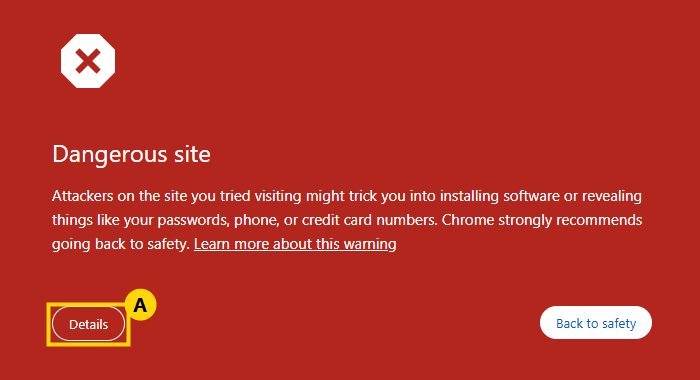
Press Details
On the red page, press Details (A) in the picture above. More text appears below.
- 2
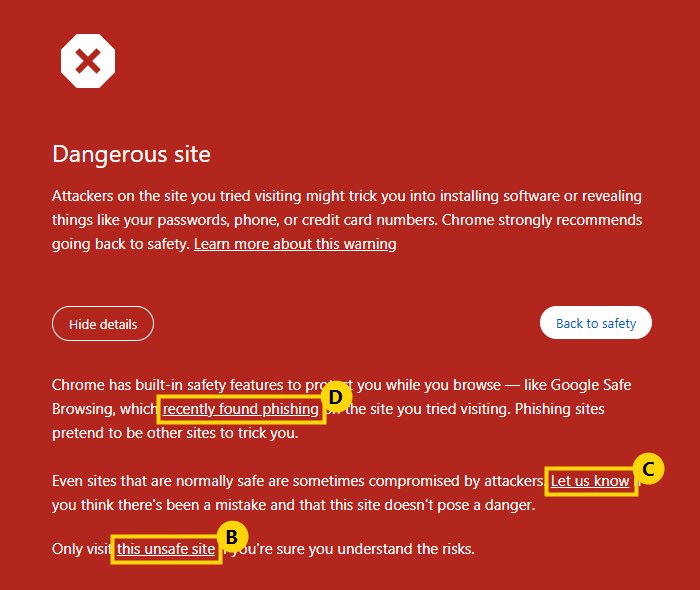
Press “this unsafe site”
At the bottom, press this unsafe site (B). Chrome opens the site for this visit only; the address bar still says “Dangerous”.
recently found phishing (D) shows what Google found. Let us know (C) is the way to tell Google it is a mistake; see step 3 below.
Clean first, then ask Google to look again.
Asking before the site is clean does not work: Google checks again and keeps the warning, and the next review takes longer.
- 1
Find and remove what was added
We scan your hosting for harmful files every day and can scan again at once. We remove the pages that were put in, check WordPress's own files against the official ones, and look for hidden redirects and unknown admin users. If needed, we bring back a clean copy from the daily backup.
- 2
Close the door they came in by
Update WordPress, every plugin and the theme. Remove plugins you do not use and anything from an unknown source. Change the passwords of every WordPress admin, the control panel and the database, and remove admin users you do not know.
- 3
Ask Google for a new check
Best: in Google Search Console, add your site, open Security issues and press Request review. Write what you found and what you removed. We can add the line Search Console asks for to your domain's DNS.
Quicker to send: press Let us know (C) on the red page, or go to Google's report form. Choose “This page is safe”, write your site's address and what was cleaned, and submit.
- 4
Wait for Google
The warning usually goes within 1 to 3 days. You can see the status in Google's Safe Browsing site status. If it is still there after a week, we look again with you.
What you do, and what we do.
Questions
Is my computer infected?
No. The warning is about the website, not your computer. Chrome stopped the page before it loaded.
Can I just switch the warning off for my visitors?
No. Only Google removes it, after the site is clean and a review is asked for. Moving the site to another server does not remove it either.
Does it hurt my place in Google search?
While it shows, Google may warn searchers or show the site lower. Once the warning is removed, this returns to normal.
Will you do it for me?
Yes, if your site is hosted with us: we clean it, send the report to Google and tell you when the warning is gone. Call or WhatsApp +88 01518 396308, or write to support@mhsplanet.com.