Point your domain to us.
Your website is ready on our server. One change at the company where you bought the domain sends visitors there: set its nameservers to the two below.
- About 2 minutes
- Live within an hour, at most 24
- SSL comes by itself
ns1.mhsplanet.comns2.mhsplanet.comBought your domain from us? Nothing to do: it already points here.
Step by step at Namecheap.
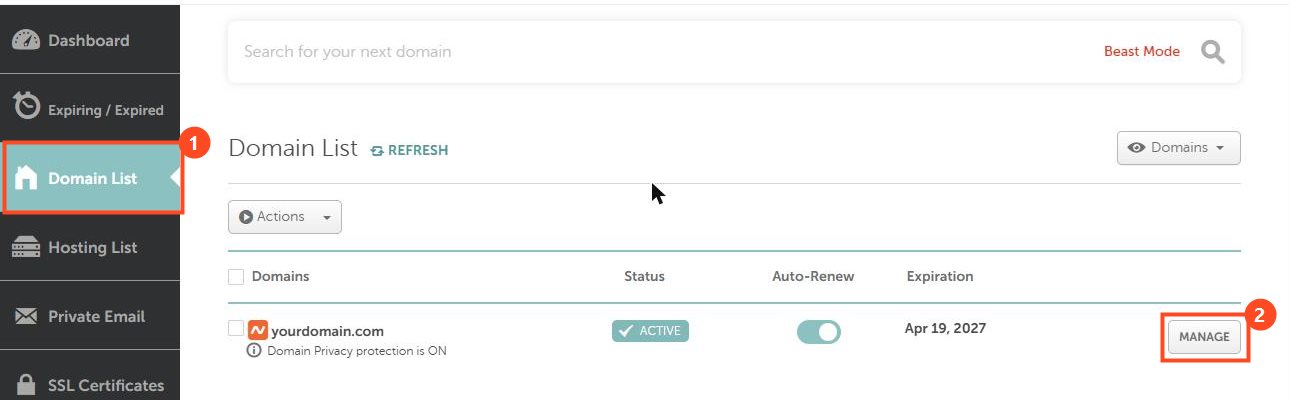
Sign in at namecheap.com first. The red numbers on the pictures show where to press.
- 1
Open your domains
Go to your Domain List, or choose Domain List on the left (1). Next to your domain, press Manage (2).
- 2
Find Nameservers
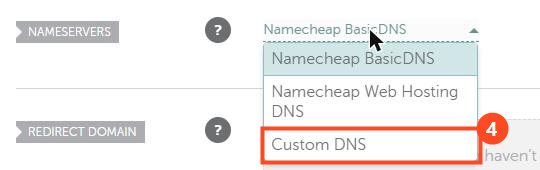
On the Domain tab, scroll down to Nameservers and open the list next to it (3).

- 3
Choose Custom DNS
Pick Custom DNS, the last one in the list (4). Two empty boxes appear.
- 4
Write ours and save
Box 1:
ns1.mhsplanet.com
Box 2:ns2.mhsplanet.com(5)
Remove any extra boxes, then press the green tick (6). Namecheap says the change is saved.
Screens from Namecheap, November 2026. If yours look different, the words are the same: Domain List, Manage, Nameservers, Custom DNS.
Where to find it elsewhere.
Questions
How do I know it worked?
Open your website after an hour. In your account at my.mhsplanet.com, Services → your hosting shows the domain as connected and the padlock as active. You can also ask the assistant: “Does my domain point to you?”
Do I lose my domain or have to move it?
No. The domain stays yours, at the same company. Only the address book it uses changes. You can change it back at any time.
I cannot find it, or I am stuck.
Call or WhatsApp +88 01518 396308, or write to support@mhsplanet.com. A person helps you on the phone, step by step.